
CWILL Order Tracking for WooCommerce brings Shopify-grade package tracking to your WooCommerce store. It syncs with 1,600+ carriers worldwide to automate updates, improve visibility, and minimize WISMO inquiries.
With it, you can easily create branded tracking pages and send automated notifications to keep your customers engaged at every step, from order confirmation to doorstep delivery.
CWILL Order Tracking for WooCommerce also works with a dozen popular WordPress plugins, so you can deliver on-brand post-purchase experiences that build trust and drive repeat purchases.
1. Go to WordPress "Plugins" to install the CWILL Order Tracking for WooCommerce plugin.
2. CWILL Order Tracking will automatically sync your WooCommerce orders in the past 30 days for free. Then, you can add tracking numbers manually, import tracking numbers in bulk with CSV files, or use CWILL shipment tracking API for automatic synchronization. If you're using third-party fulfillment services offered by Ali2Woo Lite, ALD, DSers, WooCommerce Shipping, Shippo, Sendcloud, you can easily connect them with CWILL Order Tracking so that there will be no extra work in the future.
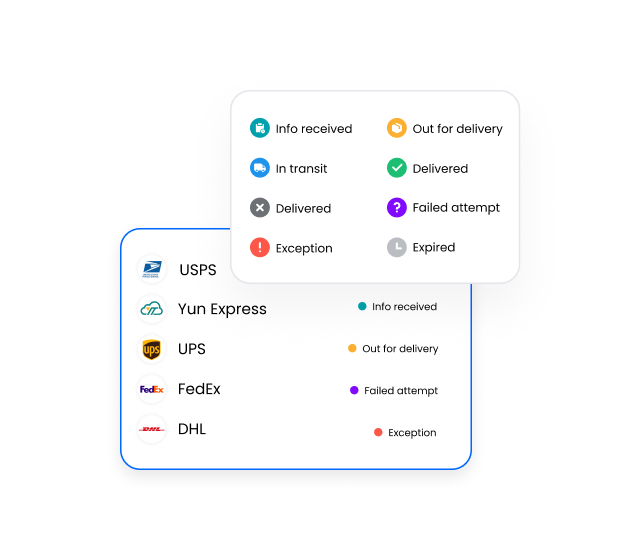
3. After tracking numbers have been added, CWILL will automatically recognize carriers and start syncing tracking information. After waiting for about 10 minutes, you can check the statuses of your WooCommerce orders created in the past. Orders are automatically classified into 8 standard shipment tracking statuses.
4. (Optional) Notably, with CWILL Order Tracking, you can change the order status to "Shipped," "Partially Shipped," or "Completed" as you need.
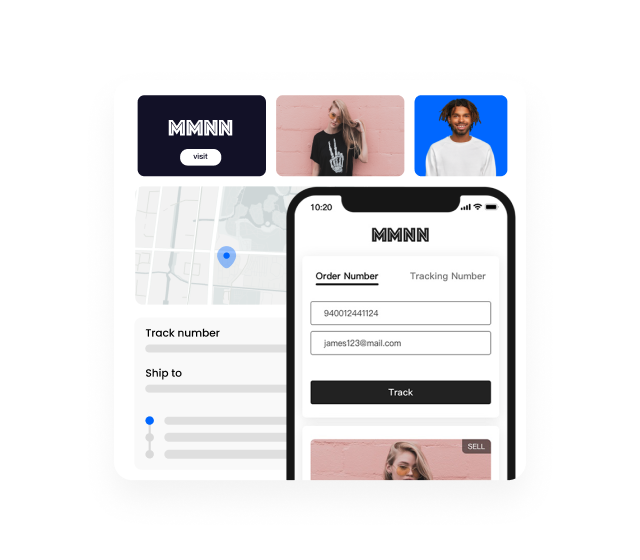
5. Then, customize the tracking page based on your branding guidelines. You can put the URL to your storefront to ensure easy access.
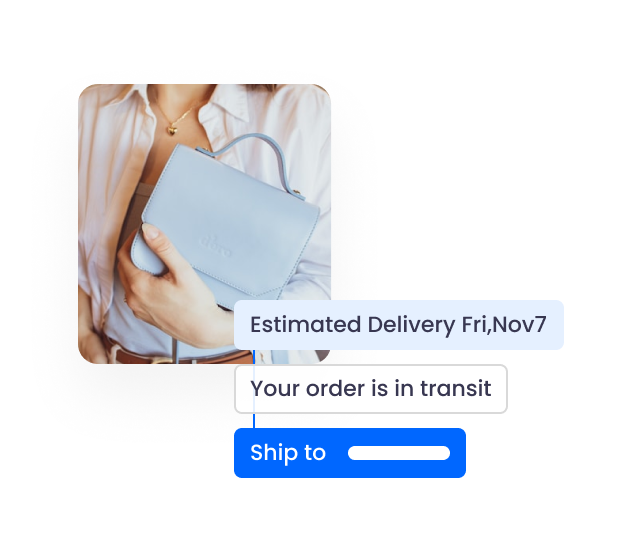
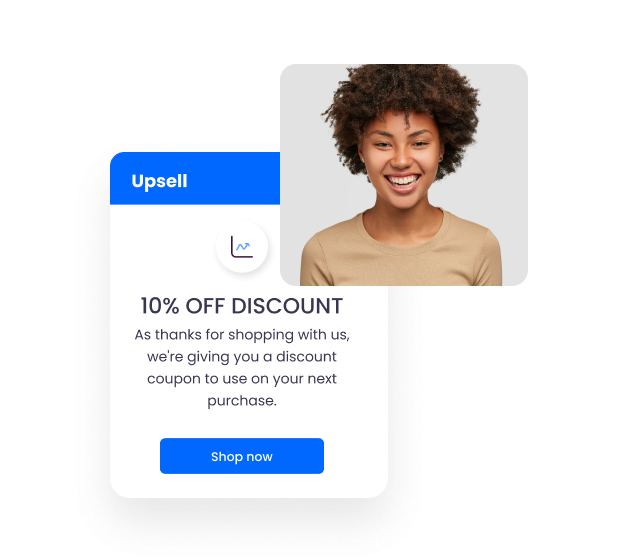
6. If you're on a paid plan, you can set up shipping notifications by editing the email templates. Next, enable the shipping notifications that you'd like to send. A total of five notification triggers can be configured to boost customer engagement during the post-purchase journey.
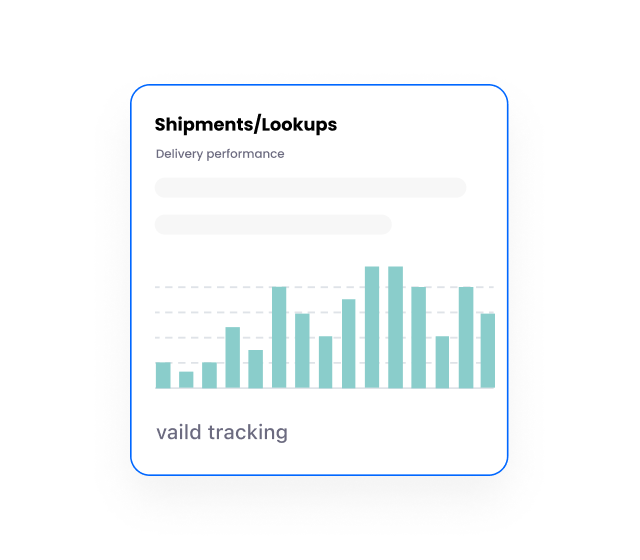
7. Visit Home to keep tabs on orders that require your special attention, and check Analytics regularly to get in-depth reports on shipments, tracking page, and shipping notifications.
1. Every paid plan comes with the same free trial period—no charges and no quota will be consumed while it runs. Feel free to switch between different plans and explore our features.
2. "1 order = 1 quota": No matter how many shipments you have in one order, the CWILL Order Tracking app syncs and tracks one order for you throughout the delivery process, and only 1 quota will be consumed.
3. If you have multiple stores and want to manage subscriptions in one place, go to the Subscription dashboard to connect all your stores. Here's how: Go to the "Store" page → Click the "Connect Store" button → Enter your store's URL and connect.
How does CWILL Order Tracking for WooCommerce work?
How to add a tracking page to your WooCommerce storefront?
How to add an order tracking section to email notifications?
